I want to create a ticket for a job that came in
New ticket, attach a customer, attach a device, hit Save. Sixty seconds.
Where to start
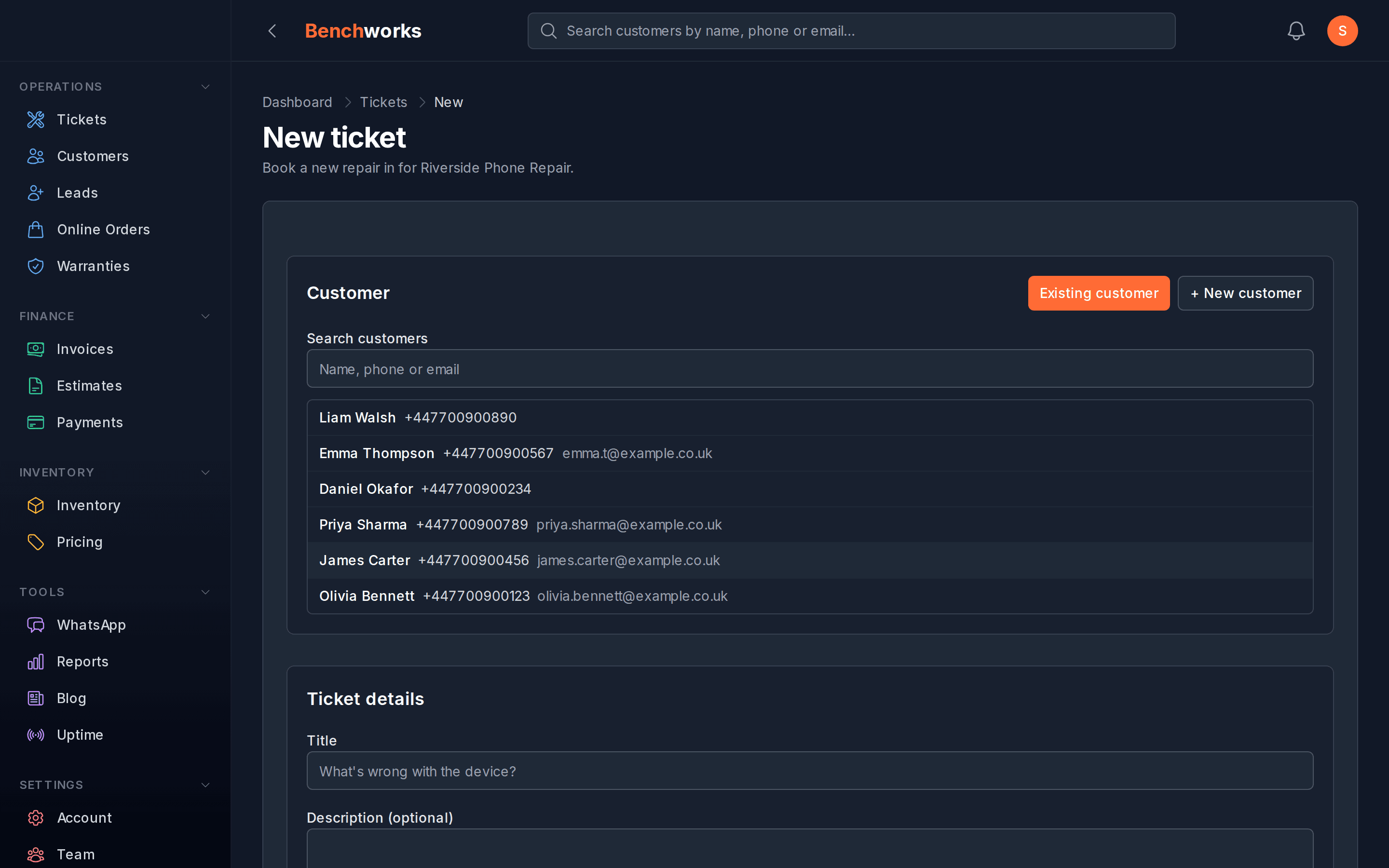
Sidebar → Tickets → New ticket. Or from a customer’s detail page, click "+ New ticket" in the top-right of the tickets section — it pre-fills the customer for you.
Filling it in
The form is short on purpose. Most fields you can leave alone and come back to.
- Customer — start typing a name or phone number. We do a typeahead across your customer list. If they’re new, click "+ New customer" without leaving the form.
- Device — pick from the customer’s saved assets, or add a new one inline. If you genuinely don’t know what device it is yet, you can skip this and add it later.
- Title — auto-fills as "{brand} {model} — {fault}" once you’ve picked the device and typed a fault. Edit it if you want something different.
- Priority — Low, Normal, High, Urgent. Defaults to Normal. Use Urgent sparingly — when everything is urgent, nothing is.
- Assigned to — pick a technician. If you’re a one-person shop, that’s you. Receptionists can take in a drop-off but can’t be assigned a repair.
- Booking type — direct (walk-in or drop-off) vs collection (you’re going to fetch it). Drives a small bit of downstream behaviour, doesn’t matter much day-to-day.
After you hit Save
The ticket lands in Inbox with a status of "New". The customer gets a WhatsApp confirmation automatically — "Hi {name}, we’ve booked your {device} in. Reference {TKT-202605-001}. We’ll update you when there’s news." You can disable that message in Settings → WhatsApp templates if you prefer to send your own.